What's New
The latest features, improvements, and fixes to Courtogo. We ship updates regularly to make court booking better for everyone.
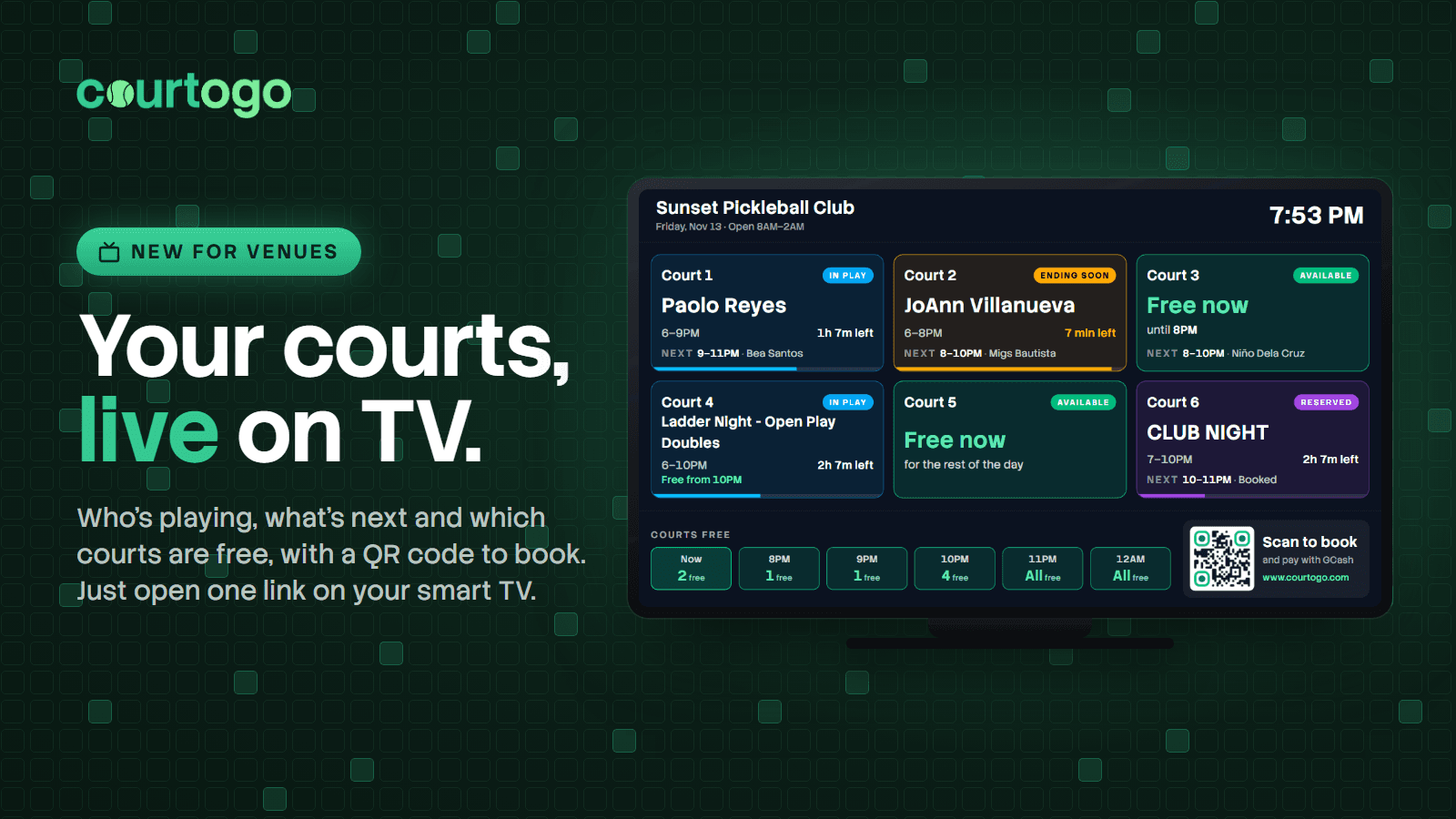
Put Your Courts Up On A TV
The question your front desk answers most is not about money. It is “Is a court free?”, followed by “When does this group finish?” — and the answer is already on Courtogo, just not anywhere a player waiting by the net can see it. TV display puts it on a screen.
Open the link on any smart TV with a web browser and it shows every court: who is on it, until when, how long they have left and who is next. A court in its last ten minutes turns amber, so the next group knows to get ready, and hours you have blocked show the label you gave them — a tournament, a club night — as written. Along the bottom, a strip counts how many courts are free now and for each of the next few hours, next to a QR code that opens your booking page. A walk-in who sees a free court at eight can book and pay for it with GCash on the spot, without queueing for the desk.
Give every TV its own link. Name each one, and have it show all your courts or only the ones near it, like a TV by courts 7 to 12; the fewer courts a TV shows, the bigger they are on it. The page tells you which TVs are on right now and when each was last seen, so a screen somebody switched off is not a mystery. Anyone with a link can open it without signing in — that is what lets a TV run on its own — so if one gets shared where it should not be, press Replace and that link stops working at once while the other TVs carry on.
The screen looks after itself. It updates every 30 seconds, keeps the screen from going to sleep, and if your internet drops it keeps showing the last board it had rather than going blank, then catches up when the connection is back. Booker names follow your Show booking names to public viewers setting, the same as your public booking page: in full when it is on, shortened like “K** T****N” when it is off.
Setting up a TV takes a couple of minutes: here is how.
Pay by GCash, Maya or GrabPay
Customers who cannot scan a QR code now have another way to pay. On the payment screen, under the QR Ph code, there are now buttons for GCash, Maya and GrabPay— whichever ones are switched on — and tapping one opens that app's own checkout instead. The QR code stays exactly where it is and remains the recommended way to pay, so nothing changes for the customers already scanning it. Two things worth knowing, because both affect what you see. These wallets cost more to process than QR Ph does, so a booking paid that way carries a slightly higher fee — the button states the new total and the difference before the customer commits, and your payout never changes: the difference is our processing fee, not your share. And wallet money reaches us a few days later than QR Ph money does, because PayMongo clears e-wallets over two banking days while QR Ph is instant. So a wallet booking is paid out on a later cycle than a QR Ph booking taken the same day. Your Financials page shows it on the cycle that will really send it, with a line naming the amount and the date it clears, and the payout email says the same thing when a run holds part of your earnings back. Nothing is lost and no fee is taken for the wait — it is only later.
You Will Hear About This Page Instead Of Having To Check It
This page has been written for every release for months, and nothing has ever told you it changed. The only way to find out was to come and look — which means the people most likely to read it were the ones who already knew to check, and everybody else has been missing features built for them. Your notification settings have had a Product announcements switch the whole time, which is the oddest part: the switch was real, and until now it governed almost nothing.
Two things change. What’s New in your sidebar now carries a dot when there is an entry you have not read, and the dot clears when you open the page. And when something ships you get a notification in the bell, which opens straight to this page. That switch in your notification settings now does what it says, so if you would rather not hear about releases, turning it off is enough — it stops the notification without touching the dot, which is only ever a mark on a menu you were already looking at.
It goes to venue owners and to anybody holding a seat at a venue, because that is who these notes are written for. One notification per entry, and never the same one twice.
A Message Notification Opens Its Thread Whichever Venue It Belongs To
The bell links to one particular conversation, and the inbox was applying your venue filter to it anyway. So if you were looking at one venue and the question had come in at another, following the notification opened the thread on the right while the list beside it insisted you had no messages at all — the single thread you had just asked for was the one thing being filtered out, and on a quiet venue that meant an empty inbox staring back at you.
A link you followed deliberately now survives the filter whatever venue it belongs to, and the list names the venue next to it so it is obvious why it is there. Your venue selection is left exactly as it was: it still reads the same in the sidebar, the unread count for your other venues still counts what is genuinely hidden, and the next thread you open is narrowed as before.
Five Pages That Scrolled Sideways On A Phone No Longer Do
A page that slides left and right under your thumb is not a cosmetic problem. It means a column of buttons is parked past the edge of the screen, and a horizontal drag that was meant to scroll a row of hours moves the whole page instead. We measured every page at phone width, and at the narrower width of an older or smaller handset, and found five.
On Reports the weekday grid is 21 hours wide and scrolls sideways inside its own card. That much was deliberate — but a grid item will not shrink below its contents unless it is told to, so that one card was setting the width of the whole column, and every other chart on the page stretched to match it. One wide grid took twelve cards and the entire page with it. On Financials, the three payment-mode tabs came to 421px in a 390px screen; they now wrap onto a second line rather than running off the side. On the home page and on Browse Venues, Nearest and Advanced settings sat in a row that could not shrink, which fit a normal phone and hung 62px off a small one; they now stack when there is no room, because an honest button label beats a truncated one. In your notifications, a long title pushed the timestamp beside it clean out of the card.
The queue chips on Manage Bookings were a separate problem: five labels with their counts do not fit one line on a phone, so they wrapped — and the second line stopped halfway across, leaving a bite out of the track that looked like something had failed to load. The chips now fill every line they wrap onto, and the track squares off its corners while it is wrapped, because a capsule takes its curve from half its own height and 38px of curve around a two-line row is what made it look broken. All five queues stay on screen rather than scrolling out of it — seeing how much is waiting in each without opening anything is the entire reason they are chips and not a dropdown.
Two charts also got their labels thinned on narrow screens. Twelve weekly bars across a phone leaves about 24px a column, which is narrower than 1.1k, so four quiet weeks ran together and read as one long number. Every other week is labelled now, counted back from the most recent — the newest bar always keeps its label, since that is the one you came to read.
Every Number On Your Reports Page Now Has Something Under It
The honest problem with Reports was not that it had too few charts. It was that nearly every figure on it was a top half with no bottom half. “157 court-hours sold” is a triumph at a one-court venue and a crisis at six, and nothing on the page said which you were. Six new reports, and the one that matters most is a denominator.
How full your courts were. Your opening hours, times the courts you had, for every day in the window — so what you sold finally has something to be a share of. A day you were closed contributes nothing and is reported as closed, never as a day you failed to sell; the same goes for every hour of the week, so the busiest-hours grid now shades by how full each slot got rather than how it compared to your best one, and outlines the hours you are shut. Hours you blocked off still count as hours you could have sold, which means a week held back for a league reads as a quieter week. That is deliberate: the alternative is that blocking everything scores you 100%.
What the next four weeks hold. The page only ever looked backwards — its window stopped at today, so a fortnight of Saturdays already sold was worth nothing on screen until each one was played. It now opens with what is already booked, and separately with what the next four weeks usually grow into, read off your own lead times: if a third of your bookings normally arrive on the day, then a thin-looking calendar next week is not the problem it appears to be. The solid bars are booked and confirmed and need no model. The outline on top is an estimate and is drawn differently on purpose, because those are two different kinds of number and adding them into one confident figure would help nobody. With too little history to read a curve from, we say so instead of guessing.
What happened to the money. Settled, waiting on payment, and cancelled — in pesos, side by side. Cancellations were a bare percentage before and unpaid holds were not on the page at all, which left the most expensive thing that happens to a venue completely invisible: a court held all week for a booking nobody ever paid for. It is usually the largest number here that an owner has never seen.
How much notice a cancellation gives. A slot given up three days out can be resold. One given up at six for a seven o’clock game cannot. Knowing which yours are is the whole input to your cancellation window, and we were reporting how often it happened while saying nothing about whether it cost you anything.
Where your bookings come from. Entered at your desk, booked online as a guest, or booked by someone signed in. This is the blunt question about us: whether Courtogo is bringing you players or filing the ones who were always going to walk in.
New faces and familiar ones, week by week, because the single “came back” share cannot tell a venue growing its base from one slowly working through it — both sit at the same percentage, and they want opposite things done about them. And what your vouchers did, which closes a loop that was open at both ends: you could run a campaign and learn nothing, and the campaign nobody used left no trace at all.
Two of the new reports are gated on hand-taken payments, for the same reasons the existing two are: a forecast built on money that never reaches us is projecting what was agreed rather than what you bank, and telling a new player from a returning one needs a contact to recognise them by. The other five are open to everyone, and what happened to the money is deliberately among them — the never-expiring unpaid hold is a bigger problem for venues taking payment by hand than for anyone else, and putting the evidence behind the pitch for switching would have been hiding it.
One repair nobody would have noticed in time. The page fetched bookings with a hard ceiling of 5,000 rows and nothing watching it. No venue is close, but the failure it was heading for is the quiet kind: cross that line and every figure would have silently dropped whatever fell past it, with no error and no warning. It now reads however many there are.
A Booking You Have Not Paid For Yet Is No Longer Lost
The same sweep, turned around to face the other way: what happens to your booking if you walk away from the payment screen. The answer, until now, was that it disappeared from the one page you would look for it on.
It is in Upcoming again. An unpaid booking matched no tab except All, so if your phone rang at the payment step, you came back to My Bookings and read “You don’t have any upcoming bookings” on the tab the page opens on. The reasonable conclusion was that the booking had failed. It had not — the court was still being held for you, and would be until the hold timed out. It now sits in Upcoming where it belongs, marked Pending payment, and gets the Today flag if it is today.
There is a way to pay it. Pay now is on the booking card and on the confirmation page. Neither one previously linked to the payment page at all, so if you closed that tab, the only route back was a banner that only appears in the same browser on the same device you booked from. And if the payment itself failed, the Try Again button on that screen went to a page that does not exist.
You can drop it yourself. Unpaid bookings now have Cancel, which puts the court straight back on sale. This is deliberately limited to bookings with nothing paid against them — where there is nothing to refund and nothing to argue about. Once you have paid, or sent a transfer in for checking, cancelling goes through the venue, who can cancel it and start the refund in one action rather than leaving you to chase it. The same limit applies to a pay-at-the-desk hold: those are exempt from the automatic timeout by design, so until now the only thing that ever ended one was the venue noticing.
One more, for anyone whose voucher covered the whole amount. That booking was real and confirmed, but the screen just dropped you back on the venue’s calendar with a toast — no reference number, no calendar file, no directions, nothing to show at the desk. If you booked as a guest, the emailed confirmation was the only trace it existed. It goes to the confirmation page now, like every other booking.
Three Things You Could Already Do, If You Knew The Trick
After fixing the team page we went looking for the same shape of problem elsewhere: something the dashboard will happily do, but only once you have guessed a sequence nobody told you. We found three worth fixing.
Removing a blocked time. You close Court 2 for a league, the league is cancelled, so you tap the red stretch on the schedule to undo it. Nothing happened — a blocked hour was not selectable unless the grid was already in block mode, and the only thing that switched block mode on was a button that appeared after you had selected free hours. So the real sequence was: select an unrelated free hour you did not want, press Block, tap the red cell — which silently discarded the selection you only made to get there — then press Unblock. Tapping the block now just removes it, and takes the whole stretch rather than the single hour under your finger. On the day view a block was a dead tile; it now opens the schedule at that court and date.
Running the same deal at two venues. A voucher’s venue cannot be changed once it exists, and an add-on’s venue field is not even shown while editing — for good reason, since both carry redemption and stock history belonging to one venue. But that left no way to offer the same thing elsewhere except retyping all sixteen fields from memory, and the “Copy Code” menu item sitting right there copies eight characters to your clipboard, which is no help at all. Both now have Duplicate, pre-filled and pointed at the first venue not already running it.
Changing a price. Editing a venue is a five-step form and Save lived only on step five, so changing one court’s price meant clicking Next through location, photos and payout settings you had not come for. The numbered circles along the top looked like tabs and were not. When you are editing, they are now buttons — every step already has a saved value in it — and Save changes sits beside Next on every step. Your venue card also carries a direct Courts & prices link, and Today’s “Closed today” notice now actually lands on your opening hours instead of on the venue list.
Giving Somebody A Second Venue No Longer Means Finding Them Twice
If somebody on your team already runs one of your venues and you wanted them on another, the only way was to type their email into the search box again. Their card sat right there listing the venue they already work at, with no way to add a second. Nothing on the page said the re-search was the trick, so the reasonable conclusion was that it could not be done at all.
Every person on the roster now has Add at another venue. It opens the same panel as adding somebody new, with them already filled in, and offers only the venues they have no seat at — so it cannot propose a duplicate. The role and permissions start from the defaults rather than copying the seat they already have, because somebody who runs the desk at one venue is not necessarily meant to run yours.
The venue is now chosen inside that panel too. Previously a seat always went to whichever venue the page was scoped to, which meant that while you were looking at one venue there was no control anywhere that could send a seat to a different one. And searching for somebody who already worked at the venue on screen used to dead-end on a greyed-out “Already on this venue” label, even when three of your other venues were open to them.
One related fix on vouchers, found while looking for more of these. Creating a voucher always defaulted to your alphabetically first venue rather than the one you were looking at. The code saved fine and reported success, but the list underneath is filtered to the venue on screen, so it did not appear — which looks exactly like a failed save. It now defaults to the venue you are actually on.
The Team Page Now Asks Who Before It Asks What
Adding someone to your team used to work backwards. You chose a role and set the permission switches first, then searched for the person at the bottom — so you were configuring a seat for somebody who did not exist yet.
That ordering caused a real problem. The switches stayed where you left them after each person was added. Add a co-owner with “See payouts and financials” turned on, then search for a weekend staffer and press Add, and that person silently got your payout history too — from a switch that had scrolled out of view two steps earlier, under a button that only ever said “Add as manager” and never named what it was handing over.
It is two steps now: find the person, then decide what they can do. The second step opens fresh every time, so nothing carries over from the last person. It shows who it is for, states in a plain sentence everything they will be able to do before you commit, and stops on payouts specifically, because every other grant on that page is about running the courts and that one is your bank history.
The roster was rebuilt too. Each venue a person works at now shows a one-line summary of what that seat reaches — Revenue · Messages · Payouts, or just Schedule only — with the switches tucked behind a Permissions control. Somebody working at three of your venues used to arrive as twelve switches with a paragraph beside each; the same person is now three readable lines you can open when something actually needs changing.
The long explanation of the whole permission model that sat under the page title is gone. What a manager is, what a staff seat sees and what a co-owner may read are now written beside the controls that decide them, where somebody is actually asking the question.
Vouchers Stopped Burning Themselves On Bookings Nobody Paid For
A voucher redemption is claimed the moment a booking is made, before any money moves. That part is deliberate — it stops a fifty-use promotion being promised to a hundred people who all reach checkout at once. What was missing was the other half: nothing, anywhere, ever gave the redemption back. Not the customer cancelling, not either expiry sweep, not an owner rejecting a payment screenshot.
So the damage was quiet and permanent. A voucher capped at a total number of uses could be drained to nothing by people who never paid a peso. Worse, a one-per-customer voucher locked out anyone whose booking never completed — telling them “you have already used this voucher” when they never actually had.
Venues taking payments by hand carried this worst, for the same reason the ledger did. An abandoned online checkout is cleared within the hour, so there the use was only stuck briefly. A pay-at-the-desk hold is deliberately exempt from that timeout and never expires on its own, so its claimed redemption was held for as long as the hold stood — and the owner rejecting it by hand did not return it either.
A use now comes back whenever a booking is cancelled while it was still waiting to be paid, and we fixed the redemptions already stuck. A booking that was confirmed and later cancelled keeps its use, because the customer genuinely redeemed the voucher. The release lives in the database rather than in each place that cancels a booking, since there are four of those and having to remember all four is how this was missed in the first place.
One correction while we are here. Last week’s note said vouchers “work perfectly well” on manual payments. The decision not to lock them was right and stands — a discount applies to whatever the customer pays, however they pay it, and the venues that most need to fill empty courts are the last ones who should lose a marketing tool. But “perfectly well” was an overstatement we had not actually checked, and checking it turned this up. Add-ons, which that note also vouched for, really are fine: their stock is counted live from current bookings, so a cancellation frees it automatically.
The Money Ledger No Longer Counts Money Nobody Paid
The live spreadsheet links pull every booking in the window, whatever state it is in. The ledger then printed each one’s full price under “Customer Paid” — including bookings where nobody has paid anything.
A pay-at-the-desk hold is the worst case. Nothing has been collected, and that kind of hold is deliberately exempt from the timeout that clears everything else, so it can stand for months: we found one that had been sitting for 220 days, contributing its full price to a column headed “Customer Paid”. On a sample venue with ₱19,500 of real takings, summing that column returned ₱21,700 — an 11% overstatement, and summing it is the first thing anyone does with this file.
Now every column that names received money is blank until it has been received: Customer Paid, Venue Payout, Platform Fee and Net To Venue. Blanking only the first would have left the row contradicting itself, with nothing paid and a bottom line of the full price. The figure is not lost — a new “Agreed Price” column carries what the court was listed at either way, so an outstanding booking is still worth something on paper. That column is appended rather than slotted in next to Customer Paid where it belongs on screen, because these links are live and an inserted column would shift every formula an owner already has pointing at the old ones.
This bites venues taking payments by hand hardest, since an abandoned online checkout is swept within the hour instead of standing indefinitely. For those venues the ledger now also says plainly that its amounts are what was agreed, because we never handle the money and cannot confirm what reached you.
Worth saying what we deliberately did not do. Neither spreadsheet link is locked. The player list — who is playing, when, on which court — is exactly as true in either payment mode, and gating the front desk’s own roster would be arbitrary. The ledger is not locked either: unlike a chart, which states one aggregate as collected revenue, every row here carries its own payment status, so the caveat travels with the data. These files are how small venues do their bookkeeping, and taking that away to sell a feature is not something we are willing to do.
What Instant Payments Actually Costs You, Before You Decide
We have spent a fortnight building the case for letting Courtogo take your payments. This release is about the other side of it, because an owner who finds out the catch afterwards has every reason to distrust the rest.
Three things were missing. Your customers pay the service fee, not you — it is added on top of your price, and your price is untouched. That was the best argument we had and it was buried in 11px grey text. It is now one of the three headline points.
Then the parts that are genuinely worse. Takings arrive in a batch rather than at the desk, so money you would have had in hand on the day lands on the next run. And customers can no longer reserve now and pay you in person — you can still ring up walk-ins yourself, but that option disappears from their side. Neither was mentioned anywhere. They are now listed under “What changes for you”, before the button, not after.
The one that mattered most: switching is a one-way door. Going back means asking support; you cannot undo it yourself. That was disclosed only as fine print. It now carries a warning of its own.
And the emailed “turn on Instant Book” link fired the switch the moment the page loaded — before a word had been read, and irreversibly. Links in email get clicked by accident, forwarded to staff, and prefetched by scanners, none of which is consent. That page now explains the trade-offs and waits for you to press the button.
We also cut the repetition. Nine surfaces were making this case; on Reports two identical buttons sat three inches apart in one viewport, which reads as a campaign rather than an explanation. Both charts keep their own reason; only one carries the button. Today no longer carries a standing version — it speaks up only when it can name something costing you money today — and Refunds explains itself only when the board is genuinely hidden. Which caught a real bug: a venue that moved back to manual payments with a refund still in flight got the board and a panel claiming we had nothing to send back, directly above a refund we had raised.
Financials Stops Describing A Payout That Isn't Coming
Financials is built around money Courtogo is holding on your behalf. If you collect your own payments we are never holding any — and the page had not noticed.
It opened on the wrong tab. “Online payments” was always the first thing you landed on, and for a venue taking payments by hand not one booking can ever appear there: online and manual payments are mutually exclusive, so the tab is empty by definition. Your actual takings were a click away under “Direct / manual” — a tab that was itself hidden until you had already been paid at least once. The page now opens on the rail your money is actually on, and that tab no longer disappears.
That empty tab also made a promise. “No online earnings yet — online bookings paid out by Courtogo will show up here” invited you to wait for something that was never coming. It now says what is true: we never handle this money, and your earnings are on the other tabs.
Topping the page was an “Awaiting payout” of ₱0, in bold, next to the promise of a run on Monday. For a venue collecting its own takings that figure cannot move and that date will never carry anything of theirs. Where there is genuinely nothing outstanding the card is gone, replaced by the reason — and by what instant payments would change, since the gap is real: we would collect at booking and send your earnings every Monday and Thursday, which is what makes a statement you can reconcile against your bank.
Two things are deliberately not hidden. If you ran on instant payments and moved back, the card stays, because those last runs are still owed to you and one of them may be overdue — dropping it would have hidden a late payout from the only person who can chase it. You get a note that nothing new will be added, not a denial of the balance. And under “All venues” with a mix of both modes the total is real but partial, so the page now names the venues that are not in it rather than leaving you to assume one figure covers everything.
Today Points At The Court You Cannot Sell
The pitch on Today used to be a general one. It now leads with whatever is going wrong on the page in front of you.
The strongest version appears when someone has reserved a court by promising to pay at the desk. A hold like that is deliberately exempt from the timeout that clears everything else, so unlike an abandoned card payment — swept within the hour — it never expires on its own. It keeps that hour off sale until somebody rejects it by hand, and if nobody does, it sits there indefinitely. We have seen one held for 220 days. Today now counts those and says so, because “a court you cannot sell tonight” is a sharper point than anything we could say about admin.
We also fixed who gets told. The standing offer only ever appeared when you had exactly one venue, which quietly excluded the people most likely to still be on manual payments: anyone running several venues and looking at all of them at once. Those owners had never seen it on the page at all — only as a modal they could dismiss. It now appears whenever anything in view is still taking payments by hand, and names how many.
One deliberate limit: the count is only the pay-at-the-desk holds, not every unpaid booking. Most unpaid bookings do clear themselves after thirty minutes, so claiming none of them expire would have been wrong about the majority of them.
Where Taking Payments By Hand Actually Costs You
Two more places now say plainly what manual payments cost, next to the thing they are costing.
Refunds was making a promise we do not keep. For a venue taking payments by hand the board is permanently empty — and it filled that emptiness with “if you cancel a paid booking, the refund will appear here”, which is not true. A refund can only be sent back down the card or e-wallet it came in on; money handed over at the desk never passed through Courtogo, so there is nothing for us to send back, and cancelling such a booking is refused outright rather than turning into a refund. The page now says that instead, so an owner waiting for a board to populate is no longer waiting for something that cannot happen.
Manage Bookings gets the other one, and it counts. Above the queue it now tells you exactly how many bookings are waiting on you to open a payment screenshot, compare it against the total and press Confirm — with a court sitting held the whole time. That is the single biggest chunk of recurring work manual payments create, and it was never named as optional. It appears only when something is actually in the queue, because with nothing waiting there is nothing to argue about.
Both carry the same one-press switch as everywhere else, and both say nothing at all once a venue is on instant payments. If you hold a seat at a venue rather than owning it you get the explanation without the button, since only an owner can change how a venue takes money.
The standard from last week still applies: these point at things that are genuinely broken or genuinely laborious on manual payments, not at features being held back. Worth saying what we deliberately did not do — vouchers, add-ons and promo codes all work perfectly well on manual payments, so there is no lock on those, and we found nothing linking payment mode to no-shows, so we are not claiming one.
Two Reports Now Need Instant Payments
Two of the five charts on Reports are now shown only to venues on instant payments. They are not held back to sell you something — they are held back because on manual payments they would be telling you things we cannot actually know.
“What you took, by week” is the clearer of the two. When a customer pays you by hand, that money never passes through Courtogo, so we never see it arrive. The chart could only ever show you what was agreed at booking — not what was collected, not what was short, not what never turned up at all. Drawn as a confident green bar, that is worse than no chart.
“How often customers come back” fails differently. A venue taking payment at the desk books most of its players as walk-ins, and every walk-in shares one placeholder contact, so there is no way to tell one from another. Forty visits from forty different people and forty visits from your most loyal regular look identical. The old footnote admitted walk-ins were left out; the honest conclusion is that at a cash venue there is not much left to count.
The other three — when your courts sell, how far ahead people book, how your courts compare — stay open to everyone, because a booking is a booking however it was paid for. That line is deliberate: a lock over a chart that works fine either way would be arbitrary, and would give you a reason to disbelieve the two honest ones.
Each locked chart keeps its title, so you can see what you are missing, and carries one button that does the whole switch — a single press if your payout details are already on file, one question if they are not. If you hold a seat at a venue rather than owning it, you get the explanation without the button, since only an owner can change how a venue takes payment.
My Venues Says Each Thing Once
My Venues had grown into a page where every card said the same things two and three times over, and the repetition had crowded out the one thing you come to the page for.
The clearest case was the courts. Each court got its own grey box reading “Court 1 - Court 1 · ₱150/hr (open)” — the number, then the name, and the name most people type is the number. Two courts filled half a card with a phrase that said one thing twice. Courts are now a single line: how many, what they cost, and whether they are covered. If you have actually named your courts something — “Center Court”, “Side Court” — the names are shown instead, because then they are telling you something the count cannot.
The second case was the status. A venue that was switched off said so twice: an “Inactive” badge up by the address, and then a coloured panel lower down headed “Venue Inactive” saying it again at greater length. The badge and the panel were worked out separately, in two places that could not see each other. There is now one status per card, and a sentence underneath it only when there is something the status cannot tell you — why it happened and what fixes it. A venue you closed yourself gets no paragraph explaining that it is closed, because the button next to it says “Open bookings”.
Closing your own bookings also no longer looks like a fault. It was shown in the same alarming red as a venue an administrator had shut down; it is a choice you made, so it now reads as one.
The status moved to the top right of each card, where it lines up down the page. It used to trail the address — and addresses are a different length on every card, so the one fact you scan a venue list for sat somewhere different in every row.
Each card now has one highlighted button, and only if the venue needs something: reactivate it, or reopen its bookings. Every card used to lead with a filled “Edit Venue”, so three venues meant three competing buttons and none of them meant anything. Editing and viewing the public listing are still there, just no longer shouting.
Finally, the “Get verified” checklist now shows you what is left rather than everything. It used to list all the requirements including the ones you had already met, struck through — so the panel was at its longest exactly when you had the least work remaining. What you have already done is counted, and one click away if you want to check. The old “Created: 3/9/2026” footer, which had a border and a row of its own, is now just “Added Mar 2026” on the end of the summary line.
Every Page Now Says Which Venue You Are Looking At
If you run more than one venue, the figures on a page mean nothing until you know which venue they belong to — and until now some pages never said. Manage Bookings and Reschedule Requests left the answer in the sidebar, which is the wrong place for it: “Needs you 5” is a different afternoon's work depending on whose courts those five are on.
The venue name now sits directly above the page title on every page that scopes itself to one, and it is also how you change venue — the label and the switcher are the same thing, so naming the venue costs no extra row.
The other half of this is that it now appears when you are looking at all your venues too, where it reads “All 3 venues”. Financials and Refunds used to show the name only once a single venue was picked, which withheld it from the state that needs it most: a pooled payout total looks exactly like one venue's, so the page went quiet precisely when it was most ambiguous.
Some pages had the control in a different place rather than missing. Vouchers, Add-ons and Messages kept theirs as a bordered dropdown inside a panel further down the page, which read as a filter on that one list and was easy to miss entirely. All three now use the same control in the same place as everywhere else. Those three also used to follow your venue choice only at the moment the page loaded, and then quietly stop following it; they now stay in step.
Team had a different problem. Its only venue control was a “Select Venue” field inside the Add Team Member box, which decided where a new seat landed — while the roster below it listed everybody at every venue. So you could be reading one venue's team and granting a seat at another. The roster is now scoped like the rest of the dashboard, and when you are on a single venue that field disappears, because the page has already answered the question: the box tells you which venue the seat will be at instead of asking again.
For Messages that is a real change and not just a move: the inbox is now scoped to the venue you have chosen, like every other page, where before it always showed every venue at once. Nothing is lost — “All venues” is still there and is still what you get by default — and if a venue you are not looking at is holding something unread, the inbox says so above the list and offers one click to widen. The sidebar's unread count now follows the same scope, so the badge and the inbox finally agree; previously the badge could count a thread the page would not show you.
The schedule and reports pages are the deliberate exception to the “all venues” option. A day board is one venue's object — there is no sensible way to draw three venues' courts on one grid — so those pages name whichever venue they picked rather than offering a view they cannot render.
Manage Bookings Now Pages Through All of Them, and the Counts Are Real
Manage Bookings used to load the newest 100 bookings and sort them out in your browser. That had two problems pulling in opposite directions.
The first is that Confirmed and Cancelled were quietly incomplete. They could only ever show you bookings that fell inside that newest hundred, so everything older simply was not on the page — no message, no indication, just absent. A venue that had taken a hundred bookings was one booking away from its oldest card dropping off the list.
The second is that the numbers on the queue chips were counting the wrong thing. “Confirmed 53” meant 53 of however many had been loaded, not 53 at your venue, and the page had no way to tell you which. They are now counted across the venue itself, so they are the totals they always looked like.
The list now pages through every booking you have ever taken, 25 cards at a time, with the queue, the ordering and the page all kept in the address bar — so confirming a booking and coming back lands you where you were instead of back at the top of Needs you. Nothing is capped any more, and nothing is hidden.
Two details worth knowing. Paging happens by card, not by row: a booking spread across several courts is several rows and one card, so pages are counted the way you read them rather than the way they are stored — a multi-court booking can never be split across a page boundary and shown missing half of itself. And searching still looks at everything, ignoring the pages entirely, so finding a booking from last March is still one search rather than a hunt through pages.
Financials Now Says Which Venue, and Still Gives You a Date When a Payout Is Late
Three fixes to Financials, all of which showed up at once if you had a payout running late.
The page now names the venue, using the same switcher that sits above Schedule, Reports and Refunds. Financials has always been scoped to the venue you have selected — but it only ever showed the payout account, so a total like “₱30,945 earnings, all time” had nothing on screen saying whose it was. You had to visit another page to find out which venue you were looking at. On a page about money that is the reading, not the decoration. If you are a co-owner granted financials at some venues and not others, the switcher offers only the ones whose money is your business.
Second, you keep the next payout date even when every cycle is overdue. The date was only worked out from cycles that were not late, so once everything outstanding was late the header gave up and fell back to “runs go out Mondays and Thursdays” — dropping the date at the exact moment it is worth reading. It now names the run that will carry the late money, accounting for the 9 AM cutoff, so on a payout morning it points at the next run rather than one that has already gone.
Third, a wording fix that was quietly confusing. When all of the money you are owed was late, the warning read “₱1,950.00 of this was due on an earlier run” directly underneath an awaiting figure of ₱1,950.00 — the same number twice, inches apart, with “of this” implying it was only a portion. It now simply says all of it is late, and keeps the amount for when the late part really is a portion.
Messages Now Tells You Which Ones You Have Not Answered
The Messages list used to show a name, a venue and a date, and nothing else. If the same customer had written to two of your venues, you got two rows that were identical apart from the venue name — and no way to tell which was the one about parking and which was the one still waiting on an answer, without opening both.
Every row now carries a line of its most recent message, prefixed with “You:” when your side wrote it. That one word is most of the value: it is the difference between a thread you have dealt with and a thread you have not.
Which leads to the real addition. Threads where the customer had the last word are now marked with a green edge and a bolder name, and counted in a Waiting on a reply filter above the list. This is not the same as unread, and the gap between them is the whole point: a question somebody opened, meant to come back to, and never answered has no unread badge at all. It looked exactly like a thread you had replied to within the minute. Those are the ones that cost you a booking, and they were the ones the inbox was quietest about.
The empty panel on the right — which used to hold one grey sentence — now opens with how many conversations are waiting, so you can see whether the inbox needs you before clicking into anything.
The venue filter is now the same control you use to switch venue everywhere else in the dashboard, instead of a dropdown box sitting directly on top of the new filter chips. When the inbox is narrowed to one venue, anything unread at the venues you have hidden is now named above the list rather than tucked inside the dropdown, where you could only read it with the menu open.
Under the hood this also fixed a layout bug worth mentioning, because it was eating text: long content in a scrolling list was widening the row instead of trimming with an ellipsis, which pushed the timestamp clean off the edge of the panel. That affected the notification bell and the message thread too, and all three are now correct.
Reschedule Requests Now Shows You What Is Changing
Reschedule Requests used to print the booking twice — the current date, time, court and price in one box, the proposed ones in another — and left you to spot the difference. On most requests only the date and time move, so three quarters of that was the same value shown twice in two colours, and the part that actually changed had nothing to mark it out.
Each request is now a list of what is changing: the old value struck through, the new one in bold, and anything that is staying put printed once and quietly. A request that also moves court or drops an hour says so on its own line instead of hiding it in a column you were scanning past.
The bigger fix is the price. The two boxes used to show two totals, which reads as a price change — and it never was one. A reschedule settles no money in either direction. If someone paid ₱1,200 for three peak hours and asks to move to two cheaper ones, the old card showed you ₱1,200 and ₱600 side by side, and the obvious conclusion was that saying yes costs you ₱600. It does not: you keep the full ₱1,200, and the card now says so in those words. The reverse is spelled out too — if the hours they want list higher than what they paid, approving does not charge them the difference, so you want to know that before agreeing rather than after.
Also, the page now tells you what leaves the building when you click. Approving emails the customer their new date, time and court. Rejecting posts a notice to their Courtogo account, which is why the reason box is worth filling in — without one they are told they were turned down and nothing else. Both are stated on the page and again in the confirmation, because “approve” had been reading like a filing decision.
The warnings about hours already booked, hours you have blocked, and two requests chasing the same slot all work exactly as before. And the sidebar link is now just Reschedules, which fits on one line.
Reports Now Actually Reports Something
The Reports page had two spreadsheet links on it and nothing else, which made it a page about exporting rather than a page about your venue. It now opens with four charts covering the last 90 days.
When your courts sell is the one worth looking at first. It is a grid of every weekday against every hour, shaded by how many court-hours sold in each slot. Your Today page can already tell you 7pm is busy — but that averages every 7pm together, and it is the difference between them that you can act on. A venue packed at 7pm on Friday and half-empty at 7pm on Tuesday has an obvious decision to make and no way to see it until now. The pale cells are the point: those are hours you are open and not selling.
How far ahead people book answers two questions you have probably guessed at. If almost everyone books same-day, there is no point opening three weeks of calendar, and a Friday-night discount cannot rescue next Saturday. If they book a fortnight out, the opposite.
How often customers come back splits the people who played here into those who came once, twice, a handful of times, or more. Walk-ins are deliberately left out — they all share one placeholder record, so counting them would report a single mystery customer with hundreds of visits.
How your courts compare ranks hours sold per court, so a court nobody is booking stops hiding inside the venue total.
Above them: what you kept over the quarter after the platform fee and refunds, bookings played and court-hours sold, your return rate, and your cancellation rate. A few deliberate choices in those: the weekly takings chart draws the current week hollow because it is a part-week and a solid half-height bar reads as a collapse that has not happened; the cancellation rate ignores bookings still waiting on payment, since those have not decided either way; and the return rate shows a plain count instead of a percentage until there are enough customers for a percentage to mean anything — 100% out of two people is not a triumph.
The money figures and the takings chart need financial access; everything else is there for anyone who can manage your bookings, because when your courts sell is desk knowledge, not accounting.
Refunds Now Have a Page, and It Tells You Whose Move It Is
There is a new Refunds page listing every refund at your venues, sorted into piles by who has to do something next.
Until now a refund you had raised simply left the building. The Refunds filter on Manage Bookings would show you the booking, but it listed anything with a refund attached — one that landed in March sitting beside one stuck since last week — and it never said what a refund was waiting on. So the ones that quietly went nowhere went nowhere quietly.
They do go nowhere, more often than you would guess. The commonest reason by a distance is that the customer never filled in the form telling us where to send the money. They get emailed it when the refund is raised, and if they ignore it, nothing happens — forever. Nobody was told, so nobody chased it.
So the page opens on Waiting on the customer, and on each of those you get the three things worth having: Send the form again, Copy link to paste into a chat, and their phone number as a button, because after four months an email is not going to do it. The rest of the list is honest about not being your problem: With Courtogo is everything sitting with us to send, each row naming what it is actually waiting on, and Refunded is the ones that landed.
There is a fourth pile that never had anywhere to live: refunds you paid the customer yourself, out of your own till. That is your money, and it is owed back to you — so it now appears under Owed to you with a total, instead of only existing inside a payout adjustment you had to go looking for.
At the top: what you owe customers, how many are waiting on you, and how long the oldest one has been waiting. That last figure is the point of the page. Available to managers and owners — the same people who can issue a refund in the first place.
Your Bookings Can Now Live In a Spreadsheet That Updates Itself
There is a new Reports page, and on it are two links that turn your bookings into a Google Sheet that keeps itself up to date. Open a blank sheet, click A1, paste the formula, and the table fills itself in — then re-pulls roughly every hour, on its own, forever. The same link works in Excel under Data → From Web.
Every export Courtogo offered until now was a file download: a snapshot of that moment, in your Downloads folder, out of date by the next booking. If you were tracking anything across weeks you were re-downloading and redoing your formulas each time. This replaces that with a live connection, so your own sheet — your columns, your charts, your pivot table — stays current without you touching it.
There are two separate links, deliberately. The Money ledger is one row per booking with what the customer paid, your payout, the platform fee and any refund — and no names, phone numbers or email addresses, so you can hand it to a bookkeeper without handing over your customer list. The Player list is who is booked, when, and on which court, and it does carry contact details, for the front desk.
The player list replaces the one-date download that used to sit on Manage Bookings. That built a file for a single day and went out of date the moment you saved it; this covers every date, including ones still to come, and updates itself. Because it is desk work rather than accounting, anyone who can manage your bookings can reach it — managers and staff included, without giving them sight of your money. The Money ledger stays limited to seats you have granted financial access.
Treat both like passwords: anyone holding one can read that report without logging in, which is precisely what lets a spreadsheet refresh unattended. Each link shows when it was last pulled and how many times, so a link being read by somebody else is at least visible to you, and Replace link kills it instantly and issues a new one. Replacing one does not disturb the other.
Manage Bookings Now Leads With What Needs You
Manage Bookings has been rebuilt around the one question it should answer: what do I have to deal with? The page used to open with a Courts / Open Play tab strip, a box of four filters and a player-list panel — three bands of controls before the first booking. The Open Play tab is gone (it only ever said “temporarily unavailable”), the filters are now a single row, and the player-list download has moved to Reports, where it is now a live sheet instead of a one-date file — so bookings start near the top of the page instead of halfway down it.
The status dropdown has become a row of queues that carry their own counts — Needs you 5, Confirmed 42, Refunds 1 — so you can see how much is waiting without opening a menu.
Two things that were genuinely confusing are fixed. A booking where the customer uploaded a payment screenshot and one where they simply have not paid used to look identical, both labelled some variety of “pending” in the same amber. Only the first is your job, and it now says Proof to check with a Check payment button; the other says Not paid yet and stays quiet, because chasing it achieves nothing. And unsettled bookings for games that already happened are now grouped under their own heading explaining what they are, rather than sitting in the same list as tonight's arrivals — nothing expires those, so they pile up quietly for months.
The sidebar's Manage Bookings badge also used to disagree with the page it opened. It counted open-play bookings that the page no longer shows, and counted a multi-court booking once per court, so a badge of 6 could open a list of 5. It now counts exactly what you will find.
The Venue Name Above a Page Is Now How You Change It
If you run more than one venue, the name printed above the Schedule title — GAA SPORTS CENTER — is now a switcher. Click it and pick another venue. There used to be a picker here and it sat in the top right corner looking like a stray form field, a long way from the sidebar offering the same choice; it was removed for being a second copy of a control you already had. The name was always going to be printed there anyway, so making that the control costs nothing and puts it where you are already looking.
It matters most in two places. On a phone, where the sidebar is behind the menu button, this is the only venue switcher on screen. And when your sidebar is set to All venues, a schedule can only draw one venue at a time, so it picks the first one alphabetically — and until now the only way off that was to go back to the sidebar. Picking a venue here changes the same choice the sidebar does, so the two can never end up naming different venues.
The Day View Is Now One Calendar You Can Read
The Day view on your Schedule drew the same day twice: a list of every booking, and under it a row of thin coloured strips you scrolled sideways. Neither worked on its own — a booking was a sliver too small to hold a name, which is why the list had to be there, and on a busy day you scrolled past the list to reach the picture. It is now one calendar, with the hours running down and your courts across — the same shape as the Book grid, so the views stop disagreeing about which way a day runs. A booking is a block as tall as it is long, carrying who it is, the hours, and whether it is still awaiting payment, and a single line marks the hour you are in across every court at once. The list underneath is gone, because the calendar now says everything it used to.
Above it sit four figures: On court now, naming the courts in play; Next up, the next arrival with who it is and which court; Occupancy, what sold as a share of what you offered; and Still to sell, the hours left with a peso figure at your base rates beside them. Look at a day gone by and the four read in the past tense, ending with what went unsold. Hours you closed off yourself stay out of the occupancy figure, so a day sold out around one court under repair still reads as a full day.
And tapping a free hour now takes you to that hour. Everywhere a gap invited a tap — here and on the Courts today grid on Today — it used to open the booking grid on the right date with nothing chosen, leaving you to find the same hour again among thirty-odd cells. Now the court and the hour come with you: the grid opens with that slot already selected and the walk-in or block choice already in front of you. Staff seats get the day's shape without the money.
Your Today Page Now Tells You Where the Money Is
The four figures at the top of Today have been rewritten to answer the questions you actually ask. On court now names the courts in play rather than just counting them. Next arrival is new — who is due next, at what time, on which court — so you know whether to expect someone at the desk. Taken today now shows how many bookings made it up. And Open hours left puts a peso figure on your unsold hours at your base rates, so an empty evening has a number attached to it. On the Courts today grid, every free hour still to come is now tappable — tap the gap and you land on the booking grid for that court's venue and date, ready to take a walk-in or close the hours off. Below it is a new band: what you took each day over the last week, and your deadest hours — the stretches that went unsold as a share of the hours you were actually open, over the last 30 days, with a shortcut to create an off-peak voucher for them. Staff seats see the day's shape without the takings.
Walk-ins and Blocking Moved Into Your Schedule
Walk-in Booking and Block Slots have left your sidebar. Both were the same grid with one button bolted on, and both made you decide before you could see whether the court was even free — pick the wrong one from the menu and you started over. Now you open Schedule, switch to Book, select the hours, and it asks what those hours are for: take a walk-in, block them off, or send a customer through the normal checkout. Everything blocking could do is still there, including repeating blocks on certain days and tapping a blocked slot to unblock it. The Day view gained a Walk-in or block button that carries the date you're looking at across, so you can read a gap and fill it without navigating back to the same day twice. If you run more than one venue, the row of venue-name buttons is gone. The venue's name sits above the page title instead, so you can always see which one you are looking at — and that name is now also how you change it. The view switch, the date and the Walk-in or block button now share a single row above the grid. Your old bookmarks still work — they land on the grid. As before, taking cash and closing hours off are manager and owner jobs; staff see the schedule read-only.
Chat: Venues Can Turn Messages Off
Chat suits a venue with somebody at a desk. If yours is run by one person who spends the day on court, an unanswered thread reads worse than no thread at all — so you can now turn messages off for a venue, from Message settings at the top of your Messages inbox. Players then see your phone number, email and social links on the Chat tab instead of a message box, so a question still reaches you by the route you actually watch. Conversations already open stay exactly where they are, and you can still reply to them — nobody who asked something yesterday is left hanging. Nothing is deleted, and you can switch messages back on at any time. Only the venue's owner can change this, not managers or staff.
Chat: Read Receipts & Booking References
Two additions to chat. The newest message you send now says Sent underneath, and turns to Seen the moment the other side opens the thread — so a customer waiting on an answer, or a venue replying late at night, can tell the difference between unread and ignored. And a booking reference typed into a message — like #2ad6be12, the code on your confirmation, receipt, or booking email — becomes a tappable chip that opens the booking: date, time, court, status, and total, without leaving the conversation. It works with either code a booking carries, and a reference only opens for the person it belongs to: a booking made by that customer at that venue. Anything else stays as plain text.
Chat: Message a Venue Before You Book
Players can now ask a venue a question without leaving the booking page. Open the new Chat tab on any venue and type — parking, paddles to borrow, whether the courts are covered, anything the listing doesn't answer. It takes the slot of the old Open Play tab, which had been showing a placeholder while that feature is rebuilt. Replies arrive live, with an unread count on the tab, on the message icon in the top bar, and in Messages. For venues: every thread from every venue you work at lands in one Messages inbox in your dashboard, newest first, with a venue filter once you run more than one — so a question waiting on an answer is never hidden behind the venue switcher. Your team can answer too — manager or staff alike, so a question doesn't sit waiting for you. And because a thread can carry a phone number, or a complaint about the very person reading it, you can keep anyone out of it: turn off Read customer messages for that person on your Team page.
Financials: Downloadable Statements & Daily Player List
Two big additions for tracking your money and your day. On Financials you can now download a CSV statement — pick a specific payout cycle, a custom date range, or your full history — with customer name, booking date & time, payment date, and payout, sorted oldest to newest like a bank statement. Refunds and clawbacks are broken out as their own lines so each cycle reconciles to the exact amount that reached your account. If a booking you were already paid for gets refunded, it now shows as “Refunded this cycle” and the deduction appears on the payout it's actually recovered from — so the numbers finally match your GCash/bank. Separately, on Manage Bookings you can now export a daily player list: choose a date and download everyone booked that day with their name, phone, court, time, and payment status — perfect for front-desk check-in and catching no-shows or double bookings.
Custom Date Pricing: Special Rates for Specific Dates
You can now set special prices for specific date ranges — like a holiday week, a long weekend, or a tournament stretch — that override your normal rates for those days. Set it up in My Venues → Edit → Pricing: choose the dates, apply it to all courts or a single court, and enter the price. It's the highest-priority rate, so it takes precedence over your weekend, holiday, and peak-hour pricing on those dates. Need it to vary by time of day? Add optional time windows within the range (for example a higher evening rate), and any hours you don't cover fall back to the range's default price. One thing to note: customers can't reschedule onto a pricier date or time for free — moves that would cost more than they originally paid are blocked, while same-price or cheaper moves still work as usual.
Cash Payments: Let Customers Pay in Person
Manual-payment venues can now let customers reserve a slot and pay cash in person instead of uploading online payment proof. Turn it on in My Venues → Edit → Payment — it's off by default, and enabling it asks you to confirm since it carries some risk. When it's on, customers choose between Pay Now (the usual screenshot flow) and Pay Cash in Person at checkout. A cash booking reserves the slot right away and stays pending until you confirm it from your dashboard (you get an in-app and email notification for each one). Unlike online bookings, cash reservations are not auto-cancelled after 30 minutes, so review and confirm them promptly — and be aware that customers with malicious intent could reserve slots without ever paying or showing up.
New: Custom walk-in titles
When creating a walk-in booking, you can now set an optional Slot Title — like “Coaching” or a group's name — that shows on your schedule in place of the generic “Booked”. The title appears everywhere your schedule is shown, including the public venue calendar and shared schedule images. Leave it blank to keep showing “Booked” as before.
New: Financials
See your true earnings for every payout cycle. The new Financials page in your sidebar groups all confirmed bookings into your twice-weekly payout cycles (Mondays & Thursdays), breaking down online bookings (paid out via Courtogo) separately from walk-in cash collected at the venue — plus add-ons, discounts, and refunds — into a clear net total per cycle. Each cycle shows a status badge (Paid out, Processing, or when it pays next), and it's built mobile-first so it's easy to read on your phone.
Venue QR Codes
Turn any venue page into a scan-to-book QR code. Open the share menu on your venue's booking page and choose Generate QR Code to create a branded QR that links straight to your booking page — with your venue logo centered and Courtogo colors. Download it two ways: a polished branded card ready to post or print, or the QR code only to drop into your own posters, tarpaulins, and signage. Great for putting on your counter, court walls, or flyers so players can book in one tap.
End Dates for Recurring Blocks (and Editable Blocks)
When you block time slots on a repeating schedule — every day or certain days of the week — you can now choose when the recurrence ends: after 1 week, 1 month, 2 months, a custom date, or Never (the previous behavior). Perfect for seasonal closures, maintenance windows, or leagues that run for a fixed stretch. You can also now edit an existing block instead of unblocking and recreating it — tap a blocked slot and change its reason, schedule, repeat days, or end date in place. Available on any booking grid and from the Block Slots page in your dashboard.
Fast Payouts: Automatic, Twice a Week for Every Venue
We're making payouts faster and more reliable for everyone. Because of the high volume of transactions flowing through the platform, sending a separate transfer for every single booking was getting flagged and rate-limited — so we've paused per-booking transfers for now. In their place, your Fast payouts are now sent automatically twice a week, every Monday and Thursday. Each run bundles all of a venue's confirmed online bookings into a single transfer, so as long as your payout details are complete, you're paid on the very next run with no weekly waiting period and still no extra fees. You can watch each batch move from Scheduled → Processing → Sent right on your payouts page, and if a transfer ever bounces (e.g. a payout detail needs fixing) we flag it there and automatically retry it on the next run. Larger payouts are handled too — bank transfers above ₱50,000 are sent over PESONet automatically. Refunds: once a booking has been paid to you in a Fast payout, refunds for it are handled by you and your managers using the same easy refund flow (you're holding the funds); if a refund is issued before that booking's payout run, it's simply left out of the batch and never paid. Important: venues that haven't completed their payout details — for example, bank-transfer venues that haven't selected a bank — can't be paid automatically and fall back to manual payouts, which are much slower. To avoid delays, open your payout settings and make sure your payout method, account details, and bank (if applicable) are all set. Visit How Payments Work to learn more.
Add-ons: Sell Rentals and Extras at Checkout
You can now offer add-ons to customers during checkout — paddle rentals, refreshments, towels, gear, anything. Configure each item as a flat price (e.g. ₱50 per paddle) or per-hour (e.g. ₱50 / paddle / hour), set optional stock to prevent overbooking across overlapping time slots, and cap max per booking if needed. Customers see them in a clean add-ons section on the checkout page and on your venue's About tab; you see them on every booking detail and in your owner notification emails so staff know what to prep. Manage add-ons from the new Add-ons page or during venue setup in the wizard. Add-ons also work in walk-in bookings.
Booking Grace Period for Late Customers
Customers can now book a time slot a few minutes after it has already started — great for last-minute extensions when players are still on the court and decide to stay longer. Pick a grace period of 10, 15, or 30 minutes per venue. The default is 0 (slot locks the moment it starts), so existing venues are unaffected until you opt in. To configure it, go to My Venues → Edit → Basic Info → Advance Booking Window → "Booking grace period."
Show Booking Names to Public Viewers
You can now let public viewers tap a booked time slot on your venue calendar to see who reserved it. Off by default for privacy. To enable, go to My Venues → Edit → Basic Info → Booking Privacy, and turn on "Show booking names to public viewers." Owners and managers always see full booking details regardless of this setting.
Auto-Payments Now Available
Auto-payments are rolling out to all venues! Bookings will be confirmed automatically when customers pay online via GCash, Maya, GrabPay, or QR Ph through PayMongo — no more verifying screenshots manually. Your first payout arrives about 2 weeks after auto-payments activate for your venue; after that, payouts are sent every Monday for the previous week's confirmed bookings, with no platform fees deducted — you keep 100% of your listed prices. (Customers pay a small service fee at checkout, always shown before they pay.) You can keep using manual payments for the next 30 days while you transition. After that, your venue will automatically switch to auto-payments — just accept the terms and add your payout details (GCash, Maya, or Bank Transfer) from My Venues to switch sooner. Visit How Payments Work to learn more.
Venue Card Header Image
Venue cards now display a full-width header photo at the top, giving players a preview of your courts and facilities at a glance. Venue owners can choose which gallery photo to use as the default header image — go to My Venues → Edit → Photos, hover over a gallery photo, and click "Set as Header." If no header is set, the first gallery photo is used automatically.
Venues Near You
The home page now shows a "Venues Near You" section that sorts venues by distance from your current location. Enable location access with one click to see which courts are closest to you, complete with distance badges on each venue card. Your preference is remembered so you don't have to enable it every visit. Note: venues must have a Google Maps link set in their profile for distance to be calculated.
Automated Payments: Testing Complete, Launching Soon
Our early testing of automated payments has been a success! We'll be rolling it out to all venues soon. With automated payments, bookings are confirmed instantly when customers pay via GCash, Maya, GrabPay, or QR Ph through our payment partner PayMongo. Your first payout arrives ~2 weeks after activation, and after that venue owners receive weekly payouts every Monday with no platform fees — you keep 100% of your listed prices. (Customers pay a small service fee at checkout, always shown before they pay.) Visit our How Payments Work page to learn more about what to expect. We'll notify you when it's enabled for your venue.
Advance Booking Window Setting
Venue owners can now control how many weeks in advance customers can book. To configure it, go to My Venues → Edit Venue → Basic Info step, and look for the "Advance Booking Window" section. The default is 2 weeks, matching the previous behavior. The booking calendar arrows and date picker enforce the configured limit automatically.
Coming Soon: Automated Payments
We're rolling out automated payments! Bookings will be confirmed automatically — no more manually checking payment screenshots. Customers pay instantly via QR Ph, GCash, Maya, and GrabPay for a hassle-free experience. No fees will be charged to venue owners. Update: Early testing has been completed successfully — see the latest update above.
Walk-in Booking Price Override
Venue owners can now manually override the total price when creating a walk-in booking. An optional "Total Price Override" field appears in the walk-in confirmation dialog. When set, the overridden amount is used instead of the auto-calculated price, with the original shown as a strikethrough for reference.
Reschedule Policy & Approval Flow
Venue owners can now configure per-venue reschedule rules: require approval before a customer's reschedule takes effect, set a minimum number of hours before the booking start, and limit how many times a single booking can be rescheduled. When approval is required, customers submit a request and the booking stays at its original schedule until the owner approves or rejects it from the new Reschedule Requests page.
Dedicated Reschedule Requests Page
A new "Reschedule Requests" page in the owner dashboard shows all pending customer reschedule requests with a side-by-side comparison of the current vs. proposed schedule, including date, time, court, and price changes. Owners can approve or reject each request with one click. A badge in the sidebar shows the count of pending requests.
Reschedule to a Different Court
Customers can now choose a different court when rescheduling a booking — not just a new date and time. The reschedule dialog loads all active courts for the venue so customers can pick any available slot across all courts.
Block Slots from Booking Grid
Venue owners and team managers can now block time slots directly from a booking grid — just select the slots you want to block by clicking or dragging, add an optional reason, and hit Block. No more entering dates and times one by one. Available from the new "Block Slots" page in the dashboard sidebar.
Booking Details Modal from Booking Table
Venue owners can now click on any booked slot directly in the booking table on their venue page to open a detailed modal showing booking info, customer details, pricing breakdown, time slots, payment proof, and status history.
Booking Management Actions
Venue owners can now reschedule bookings, transfer them to a different court, add hours, edit customer details, and cancel bookings — all from the booking details modal or the manage bookings tab in the dashboard.
Pay-First Booking Mode
Venue owners can now enable a "Require Payment First" option in venue settings. When enabled, customers must upload payment proof on the checkout page before their booking and time slots are created. This prevents slot squatting and ensures only paying customers reserve court time.
Venue Waiver / Terms Form
Venue owners can now enable a waiver or terms form in venue settings. When enabled, customers must read and accept the terms in a popup before their booking is created. Acceptance is timestamped on the booking.
Open Play Court Assignment
Open play sessions can now be assigned to a specific court. When a court is designated for open play, those time slots are automatically blocked from regular bookings on the booking table.
Cancellation Note for Venue Owners
When rejecting or cancelling a booking, venue owners can now include an optional note or reason that is relayed to the customer via the cancellation email.
Booking Status Audit Log
Every booking status change is now recorded with a full audit trail — who made the change, how (manual, auto-confirm, walk-in, webhook, timeout, or customer), and why. Venue owners and admins can expand a "Status History" timeline on each booking card.
Admin Walk-in Booking
Admins can now create walk-in bookings for any venue from a dedicated page in the admin dashboard, with optional customer name, email, and phone number fields.
Admin Bookings Dashboard
Admins now have a centralized bookings dashboard to view and manage all bookings across every venue on the platform, including confirming, rejecting, and cancelling bookings.
Open Play Player Names
When joining an open play session, players can now enter names for each additional player in their group. Player names are visible to venue owners on the session details page.
Team Manager Access
Venue owners can now add team managers who get full access to the owner dashboard, including managing bookings and open play, without needing to be the venue owner.
Booking Auto-Cancellation Timeout
The booking auto-cancellation timeout is set to 30 minutes. Bookings without payment proof are automatically cancelled after this period.
Location Map in Sidebar
The venue location map has been moved from below the main content to the sidebar, directly under Contact Information, for a more intuitive layout.
Venue Profile Picture & Photos Gallery
Venue owners can now upload a circular profile picture (shown on venue cards and detail pages) and multiple gallery photos. A new "Photos" tab on the venue page displays a full gallery with lightbox for enlarged viewing.
Google Maps / OpenStreetMap Embed
Venue owners can paste a Google Maps link in the Location step. The venue's About tab now displays an embedded OpenStreetMap showing the venue's exact location with a pin marker and an "Open in Google Maps" link.
Demo Mode for Pending Venues
Anyone with a direct link can now view a pending (unapproved) venue and experience the full booking flow — including checkout and the payment page — without any emails being sent. The "I've Completed Payment" button is disabled for demo bookings.
Redirect After Venue Creation
After creating a new venue, owners are now redirected to their pending venue page instead of the homepage, so they can immediately see how their venue looks.
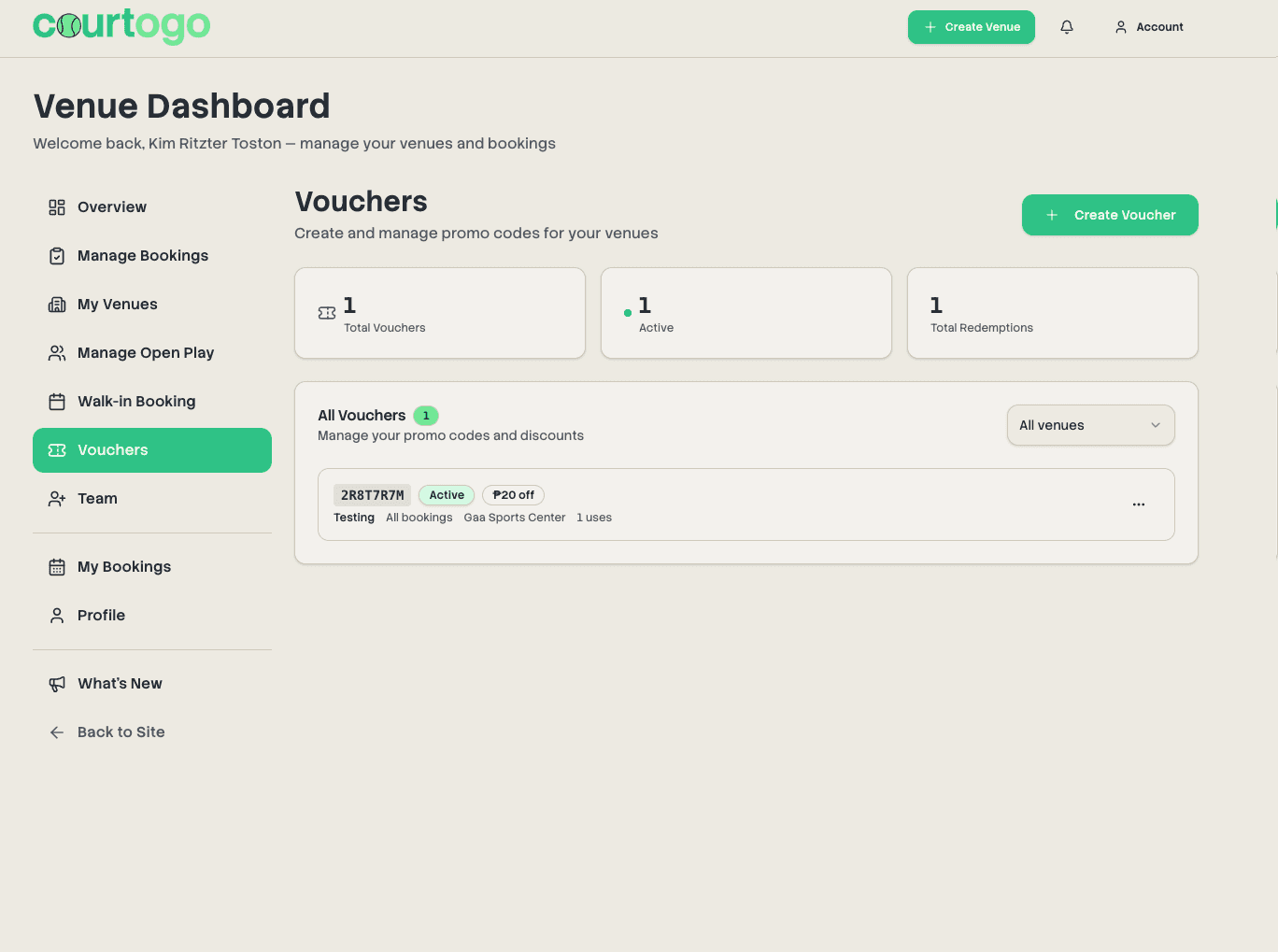
Voucher / Promo Code System
Venue owners can now create discount codes — percentage off, fixed amount off, or completely free bookings. Customers enter promo codes at checkout. Supports auto-apply vouchers, per-customer or total usage limits, date ranges, and per-court targeting.
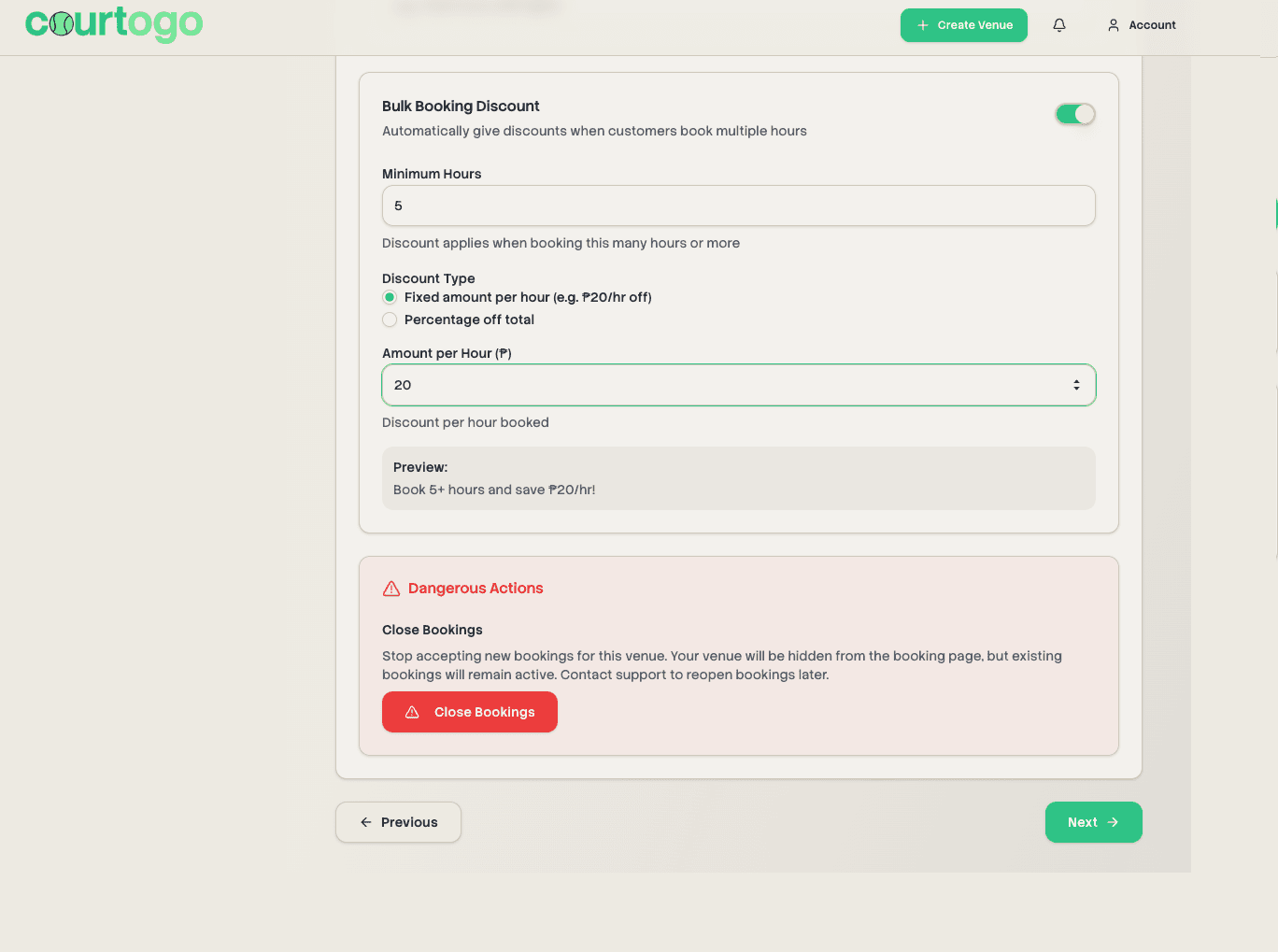
Bulk Booking Discount
New automatic pricing rule for venues: book a minimum number of hours and get a per-hour peso discount or a percentage off the total. Configured in venue settings and applies automatically at checkout — no code needed.
Flexible Start Times
For venues that open at :30 past the hour, customers can now toggle between :30-aligned slots (e.g. 12:30-1:30) and on-the-hour slots (e.g. 1:00-2:00) using a tab switcher above the booking grid. Cross-alignment conflicts are handled automatically.
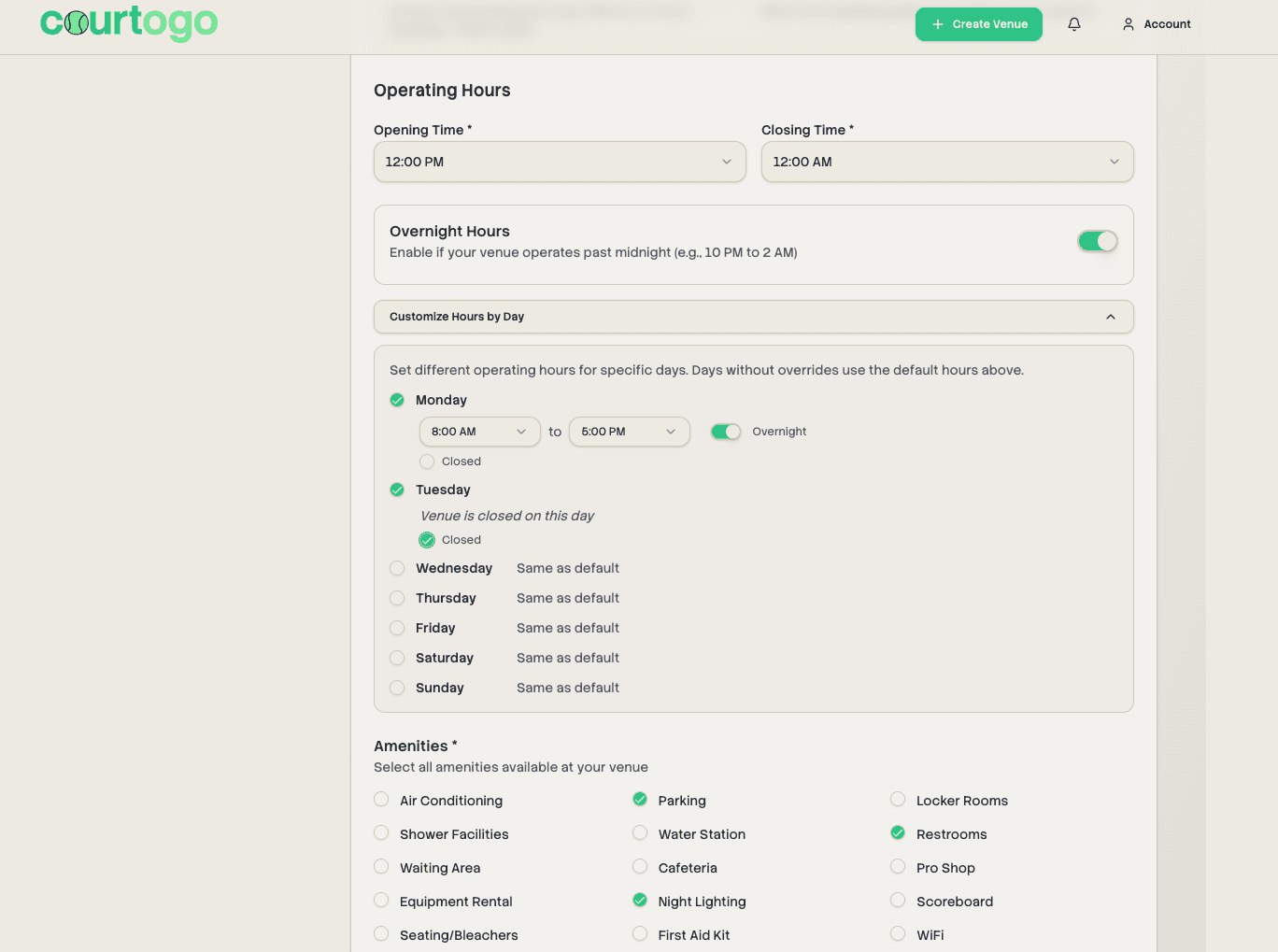
30-Minute Operating Hours & Per-Day Overrides
Venues can now set opening and closing times at :30 increments (e.g. 12:30 PM). Additionally, venue owners can customize operating hours for specific days of the week — perfect for venues with different weekday and weekend schedules.
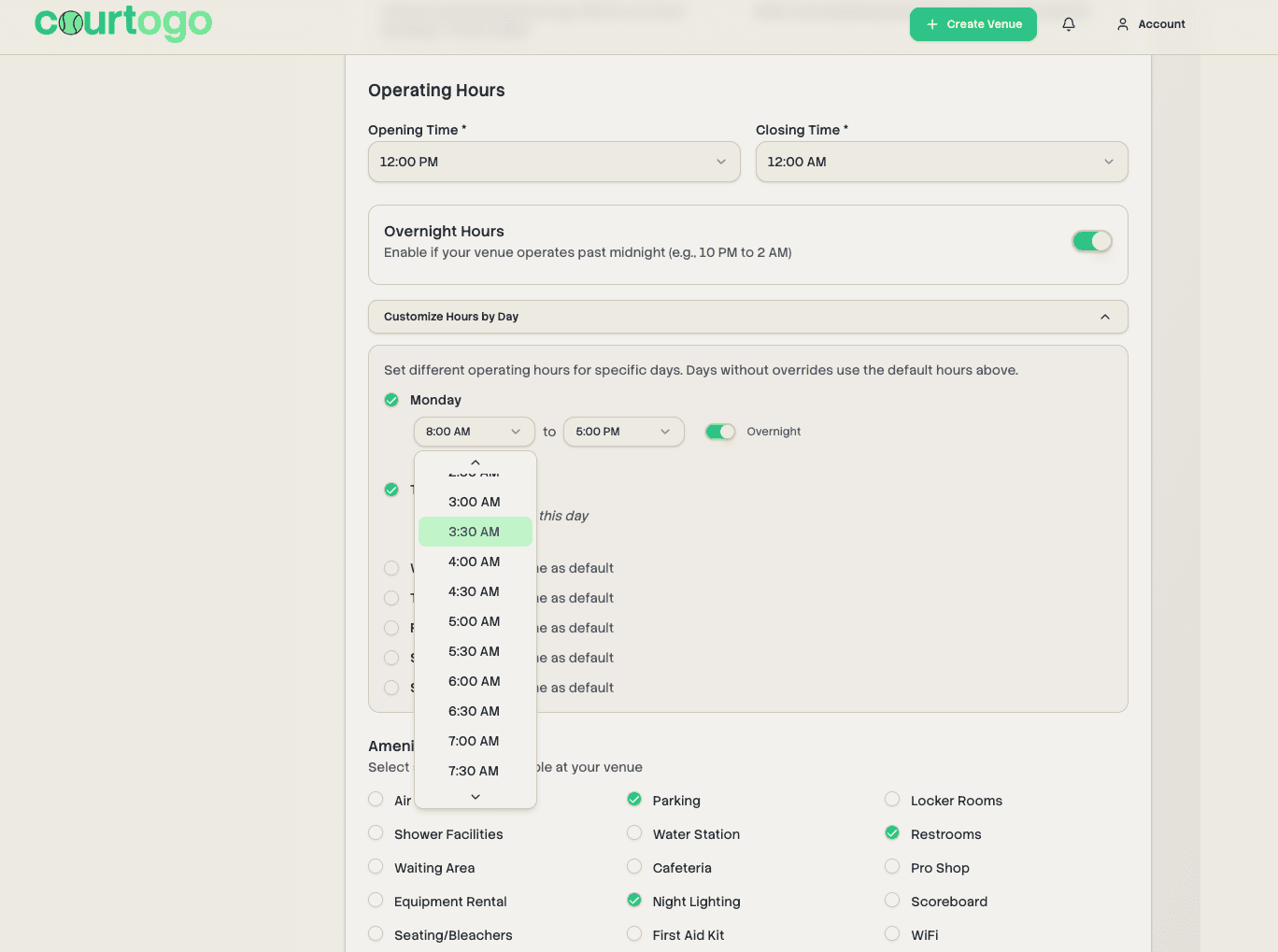
Weekend & Holiday Peak Pricing
Venue owners can set a flat peak price that applies to all hours on Saturdays and Sundays, and separately for Philippine holidays. Includes support for adding custom holiday dates (e.g. Holy Week, local fiestas).
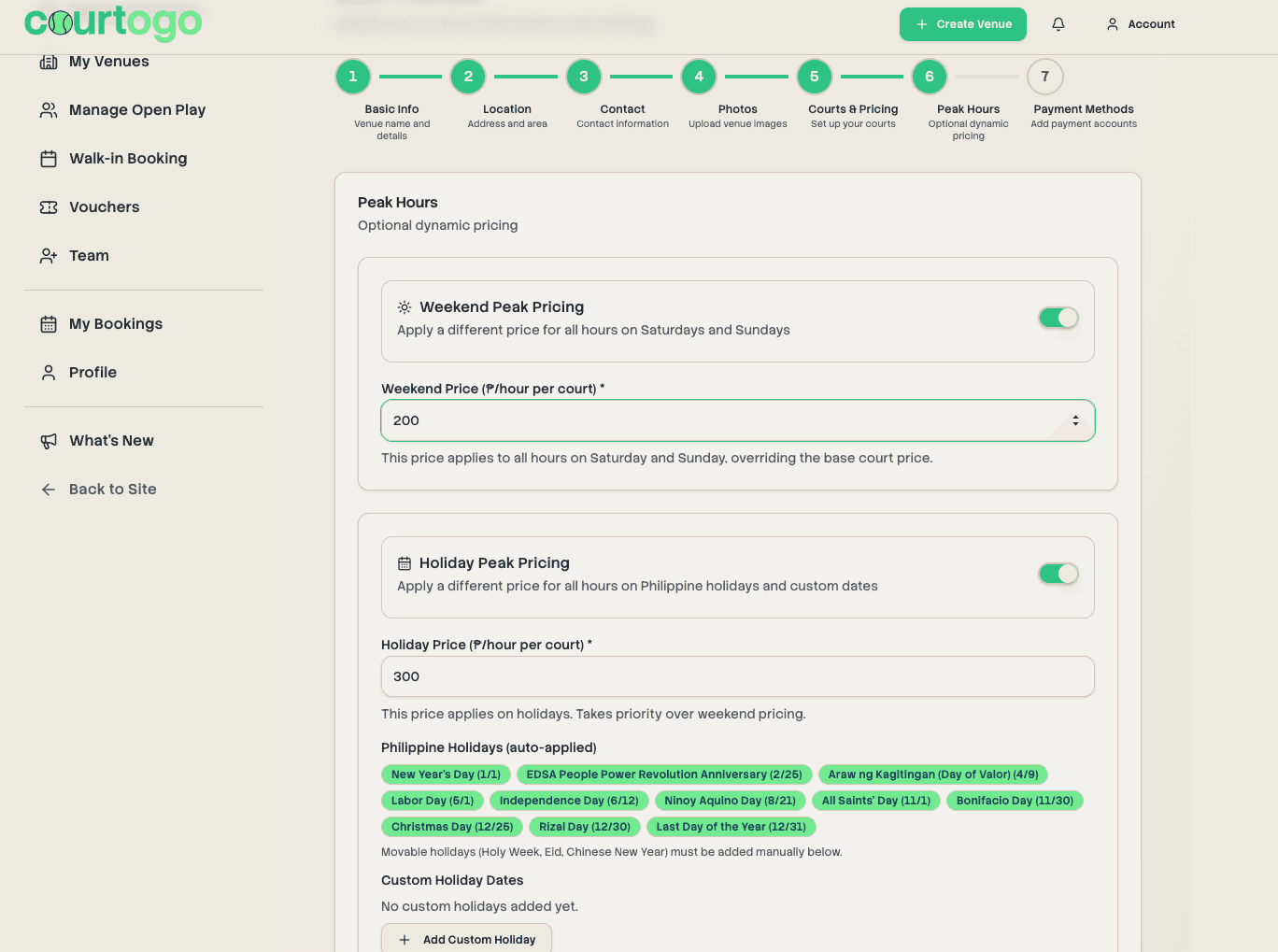
Consistent Venue Card Layout
The "View Details & Book" button now always appears at the bottom of venue cards regardless of content length, giving the venue listing page a cleaner, more uniform look.
Venue Description Line Breaks
Venue descriptions now properly render line breaks as entered by owners. The description text area in the venue form has also been enlarged for easier editing.
Auto-Confirm Payment Default Changed
The default for new venues is now set to manual confirmation. Venue owners who want automatic booking confirmation can opt in explicitly in their venue settings.
Mini Convenience Store Amenity
Added "Mini Convenience Store" as a new amenity option that venue owners can select when setting up their venue.
Have a feature request or found a bug? Let us know on Facebook